
Linux – A Simple TUI to Log Into AWS Profiles Faster
Working with multiple AWS accounts is something most DevOps engineers deal with daily.
Profiles, SSO sessions, expired tokens, switching roles — it all adds friction to what should be a simple workflow.
After repeating the same commands dozens of times per day, I decided to build a small terminal tool to simplify the process.
That’s how awslogin was born.
It’s a lightweight Terminal User Interface (TUI) that helps you quickly select an AWS profile and log in using aws sso login without memorising profile names or typing long commands.
The Problem
If you work with AWS SSO and multiple profiles, the workflow usually looks something like this:
aws sso login --profile company-dev-admin
aws sso login --profile company-prod-readonly
aws sso login --profile company-security-audit
This is manageable with a few profiles, but once your ~/.aws/config starts growing, things get messy.
Common pain points:
- Forgetting profile names
- Switching constantly between accounts
- Re-running
aws sso loginwhen sessions expire - Listing profiles manually to see what’s available
Even with shell history or autocomplete, it still creates unnecessary friction.
I wanted something faster and more visual.
The Idea
Instead of typing profile names, I wanted to select them interactively.
The concept was simple:
- Read profiles from
~/.aws/config - Present them in a terminal UI
- Select the desired profile
- Automatically execute
aws sso login
All without leaving the terminal.
The result is a minimal TUI focused on doing one thing well: logging into AWS profiles quickly.
How It Works
The tool reads the AWS configuration file and extracts available profiles.
Then it launches an interactive terminal interface where you can navigate profiles using the keyboard.
Typical flow:
- Run the tool
- Select a profile
- The tool runs the appropriate login command
Example:
awsloginThen simply choose the profile you want.
Behind the scenes it executes:
aws sso login --profile <selected-profile>That’s it.
No extra configuration required.
Why a TUI?
There are many CLI utilities that help manage AWS credentials, but I specifically wanted something that:
- stays entirely in the terminal
- requires almost zero configuration
- focuses only on profile login
- is fast and minimal
A TUI provides a nice balance between automation and usability.
You still keep the speed of the terminal, but with a much clearer overview of available profiles.
Design Philosophy
This tool follows a few simple principles:
Minimal dependencies
The goal is to keep it small and portable.
Single responsibility
It only handles AWS profile login.
Fast interaction
Keyboard navigation should always be faster than typing.
Works with existing AWS tooling
No custom credential systems — it simply wraps the standard AWS CLI workflow.
Installation
Clone the repository:
git clone https://github.com/faustobranco/awslogin
cd awslogin
Follow the instructions in the repository to build and install.
Using Homebrew (Recommended)
brew tap faustobranco/devops
brew install awslogin
Project repository:
https://github.com/faustobranco/awslogin
Configuration
The tool expects a AWS Config file at ~/.aws/config.
Usage

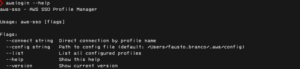

| Command | Description |
|---|---|
| awslogin | Open interactive menu |
| awslogin –connect “Name” | Connect login to a specific account |
| awslogin –list | List all configured profiles |
| awslogin –config ./alt.config | Use a different config file |
When This Is Useful
This tool is particularly helpful if you:
- Work with many AWS accounts
- Use AWS SSO
- Frequently switch profiles
- Prefer terminal workflows
Instead of remembering profile names, you just pick one.
Final Thoughts
Sometimes the best tools are the small ones you build to solve your own daily annoyances.
This started as a quick personal utility, but it turned out to be genuinely useful in my workflow.
If you work with AWS profiles all day, it might save you a few seconds every time you log in — and those seconds add up.
If you’d like to try it or contribute:
✅ Se quiseres, também posso:
- adaptar o post para SEO técnico (DevOps / AWS / CLI / TUI)
- escrever uma versão mais “storytelling” (melhor para blog pessoal)
- ou criar imagens/screenshot sections para o artigo (TUI screenshot, workflow, etc.).
